Starter
Free
Try your press, make something real.
- One common round size family
- Your own image uploads
- Small starter artwork collection
- Full-quality local exports
 ButtonGenie
Made for people who make the buttons
ButtonGenie keeps the print-ready artwork, customer order, and pickup number in one practical booth workflow.
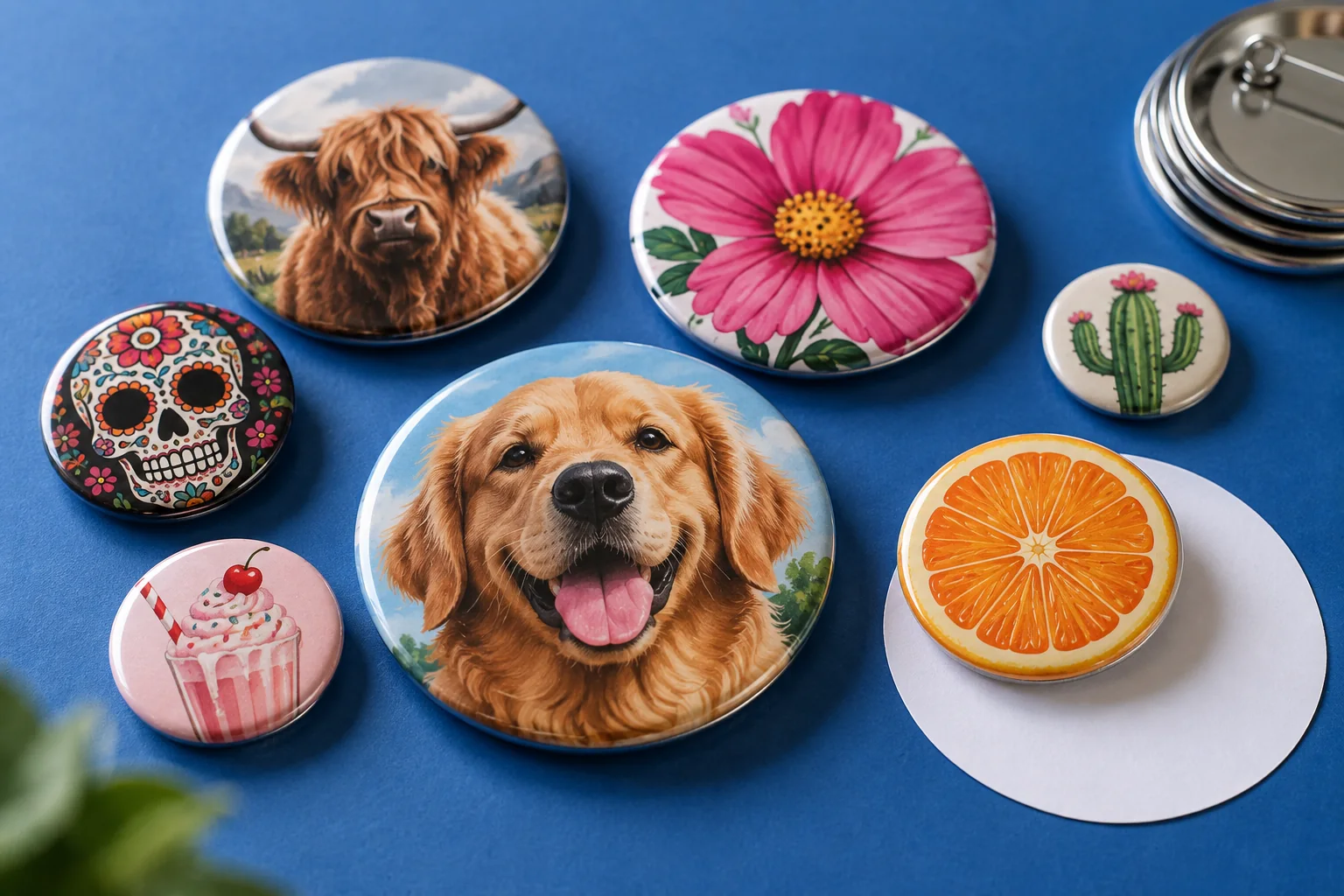
1 of 3 · Ideas for the next table
Choose included artwork, add a short name, and set the background. Download the result as a ButtonGenie design file or continue in the Studio.
 MAYA
MAYAUse the high-resolution PNG to view, share, or print this preview. To reopen the exact design, save the .bgdesign.json file and choose Open in Studio.
A bigger canvas for button makers
Explore 18 shape families, including round, square, oval, heart, and specialty designs, in the same local Studio. Keep the artwork, customer order, print export, and pickup workflow together.
Choose by shape and dimensions, then check the profile's source and production notes. Inch and metric labels stay distinct: a 2.25-inch face is 57.15 mm, not 58 mm.
Draft profiles show assumed margins and approximate contours explicitly. Products with unresolved face dimensions stay listed as unavailable until the missing measurements are established.
Our research records 151 supplier entries across 18 shape categories, with 64 sources. Entries include overlapping suppliers and historical or unresolved specifications; these are research counts, not counts of validated machines.
Supplier dimensions and generic design profiles are identified separately. Published dimensions help you start; they do not certify a die contour, cut line, or pressed result. Check the manufacturer's current template, print at actual size, and press one test before a batch.
These links identify sources, not partners or endorsements. Custom tooling means no finite catalog can promise every worldwide button size.
From idea to pickup bag
Build the artwork, keep the order beside it, and export from the same local workspace.
Each step keeps the useful detail from the step before it.
Use a photo, a name, 180 included graphics, or six frames. Face, wrap, and safe guides stay visible while you work.
Keep the customer, quantity, price, status, and exact design snapshot on the device.
Export one design or a repeated sheet. Test the cut diameter and supplies for your machine before the batch.
Paired claim tickets and the pickup board use numbers without showing customer details.
Plan the table before you pack it
Use your own numbers to estimate a show day or an online batch. The calculator stays in this browser and never sends your costs anywhere.
Include your booth, travel, and card-processing costs.
Planning estimate only. Sales volume, tax, refunds, shipping, and real event conditions vary. This is not an earnings guarantee or financial advice.
Illustrative workflow examples
These sample testimonials use fictional maker personas to show how ButtonGenie features can fit a real workflow. They are not customer endorsements.
“Keeping the design with the order saves me hunting for the right artwork when a customer comes back.”
“Claim numbers give our table a simple way to match finished buttons with the right pickup bags.”
“Once the Studio has loaded, I can keep designing and exporting when the venue Wi-Fi drops.”
“Local saves and portable design files give me a practical way to revisit work and keep my own backups.”
Editing, local customers and jobs, intake, claim tickets, and export stay on the device. Online reorder links and SMS are optional services that say clearly when setup or a connection is required.
ButtonGenie uses browser storage for designs, business records, and preferences. It does not need a tracking cookie for the local Studio. Download business backups regularly and protect the tablet like a paper order book.
ButtonGenie has a controlled pilot brief for machine makers and suppliers: one machine profile, one measured test print, and support results before any compatibility claim.
No manufacturer partnership is implied.
Download the printable partner briefQuestions from the worktable
The current Studio, local order book, and export tools work without an account. Account registration is in preview, and paid-plan checkout is not open yet.
After a successful first load, editing, local records, and export can work offline in the same browser on that device. Account features, online reorder links, and SMS still need their configured services and a connection.
Studio designs, photos, customers, and jobs are stored in this browser on this device. They do not automatically sync elsewhere, so download portable design files and business backups regularly.
No universal fit is claimed. Match the supplier profile, shape, face dimensions, and paper-cut template to your machine and supplies. Generic profiles are design starting points. Print at actual size and press a test; specialty contours need the manufacturer's exact template.
Yes. Choose an image from the device, or use the camera where the browser supports it. A photo stays separate from bundled graphics so choosing artwork does not silently remove it.
The local workspace can keep customer details, quantity, price, status, pickup number, and the saved design snapshot. ButtonGenie can make invoices, but it does not process card payments or claim an order is paid.
A plan for your next button
Account registration is in preview while confirmation email delivery is configured. Paid plans are coming; checkout is not open yet. The current Studio remains free while plan access is prepared.
See how ButtonGenie comparesFree
Try your press, make something real.
$9.99 / month
Or $107.89 billed yearly · save 10%
For your button business
$24.99 / month
Or $269.89 billed yearly · save 10%
Planned tier benefits shown. Prices in USD; applicable taxes may apply. Annual savings compare twelve monthly payments, rounded to cents. Subscriptions will renew until canceled. Introductory University resources stay public. Profile availability does not guarantee machine compatibility.
Open the working Studio in your browser.